
Facts, down the left#
A work item’s facts sit down the left of its page, and each one is a control. Press it, choose, and it is saved. There is no edit mode and no Save button.
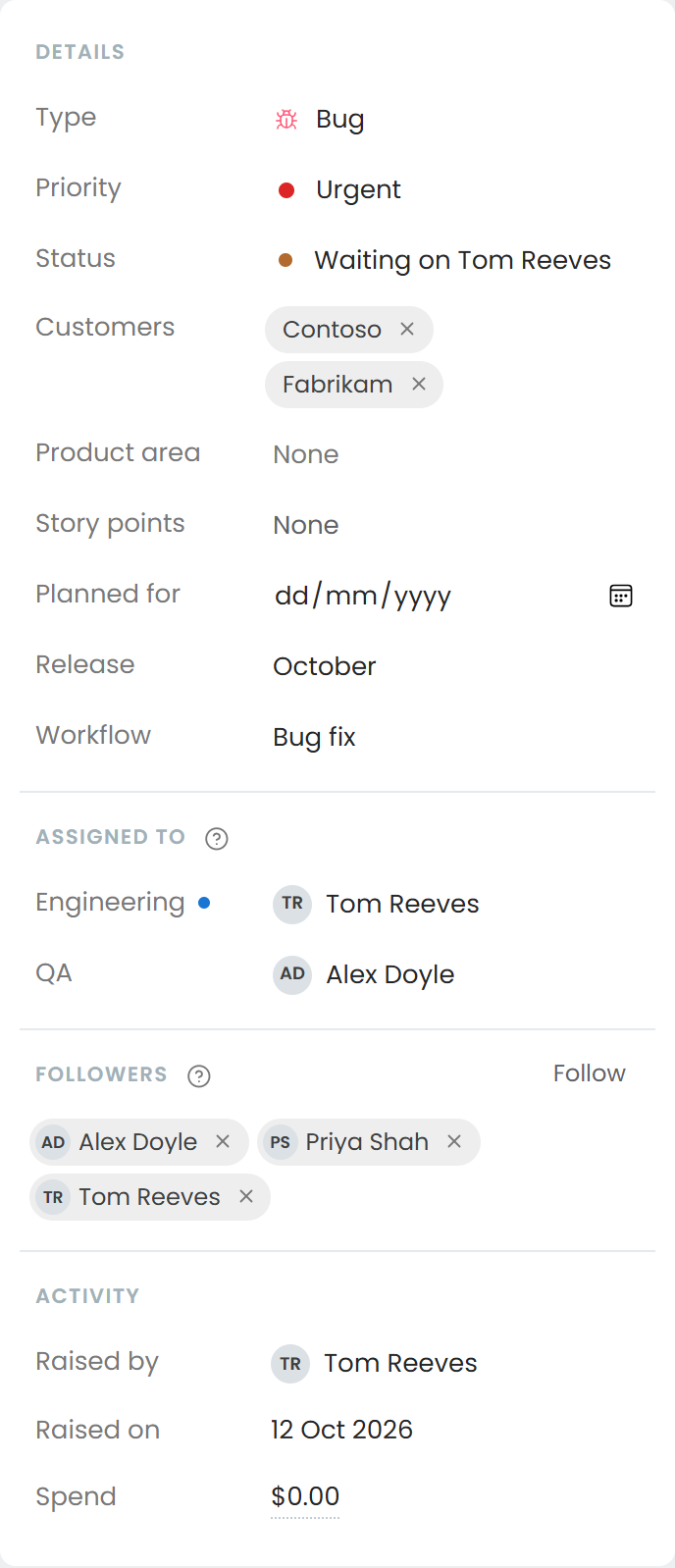
| Fact | Notes |
|---|---|
| Type | Changing the type changes how the work behaves. See Work item types. |
| Priority | Low, Medium, High or Urgent. |
| Customers | One or several. Each customer’s page lists the work item. |
| Release | Not shown on a project that ships continuously, or for a type that does not ship in a release. |
| Workflow | Which workflow it follows. An admin can change it. See below. |
| Custom fields | Whatever your organisation has added. |
Edit, Close and Delete are behind the … menu.
Assigned to#
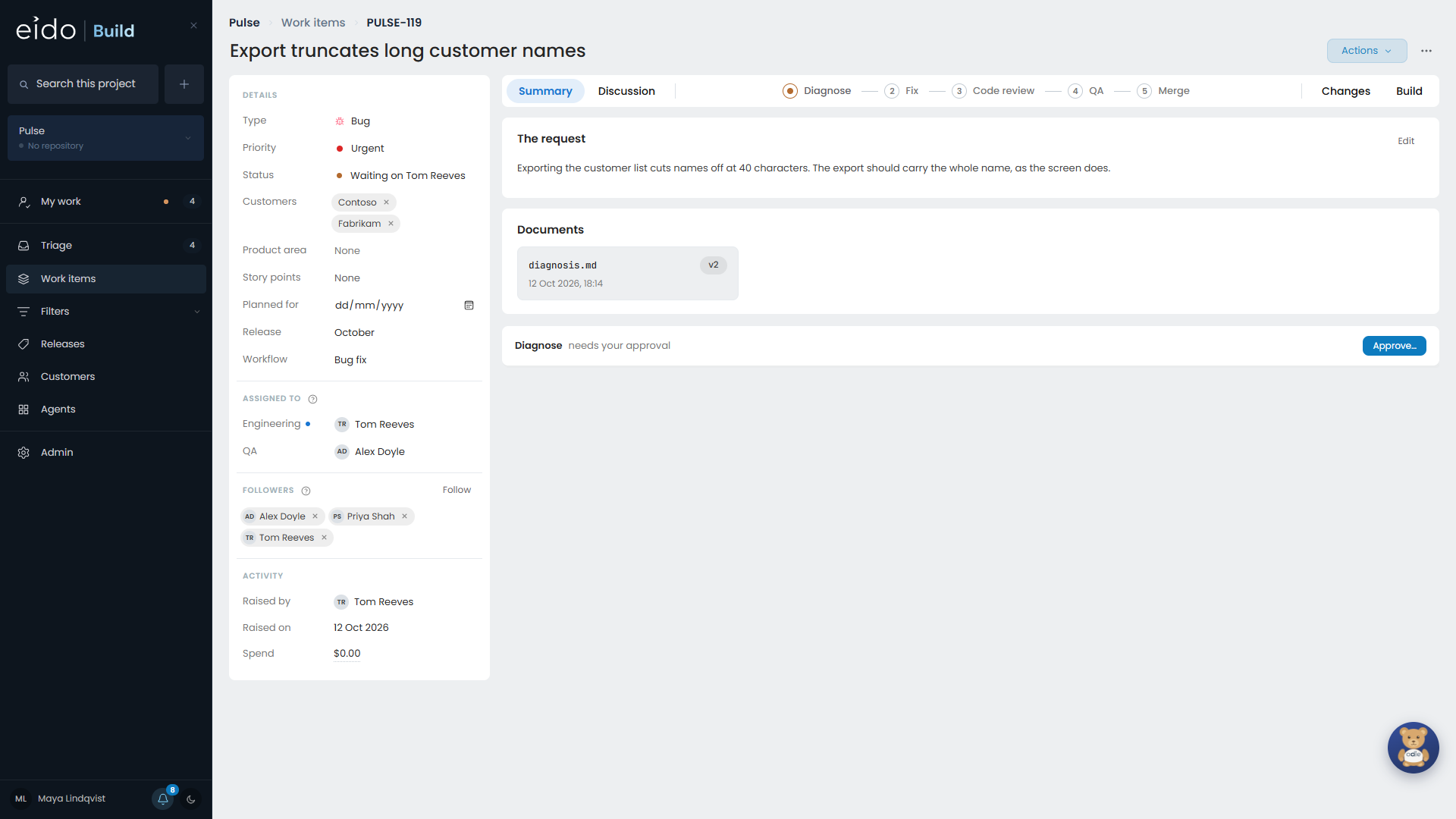
Assigned to has one row for each team the workflow involves. Press a name to pick somebody else from that team. An empty row, such as “QA: unassigned”, is shown on purpose so that somebody fills it.
Owners are named when the work is approved at triage, using each team’s own rule. See Teams.
The request#
The description and its files have an Edit beside them at every point in the work item’s life: in triage, while queued, and while it is under way.
Stages#
Each stage of the workflow is listed with its status. Open a stage to see its conversation with the agent, the documents it produced, and what it has spent if you are allowed to see costs. See Working with an agent stage.
Documents#
Agents write documents, such as a design or a diagnosis. Every version is kept.
- Each document shows when it was written, and a dropdown beside it picks an older version.
- A document marked as a presentation opens full screen, one page at a time. Use the arrow keys to move.
- Diagrams and mockups in a document are drawn, not shown as code.
- Each version is also committed to the work item’s branch, under
.buildengine/, so the reasoning stays with the code.
Changes and builds#
Once a coding stage has run:
- Changes shows what the branch changes: a tree of files, and each file in full with its differences marked.
- Build shows the builds for the branch, their jobs, and the failing log in full. It is read live from your repository host each time, so it is never out of date.
Actions#
The Actions menu runs the scripts your administrators have written for the project, against this work item’s branch. Typical ones sign you in to the branch’s preview environment or seed it with data. See Project actions.
Changing the workflow#
If triage picked the wrong workflow, an admin can change it on the work item.
- Before the work has started, this only changes which workflow it will start on.
- After it has started, the stages are replaced. This is refused once the work item has a conversation, a document or a cost on it, because that history belongs to the workflow it ran under. Raise what is left as a new work item instead.
Deleting a work item#
Deleting archives the work item. It can be brought back. Its branch cannot, so deleting asks whether to delete the branch too.
The box is off to start with. Leave it off if there might be work on the branch you want to keep. If the branch cannot be deleted, for example because it is protected, the work item is still archived and you are told why the branch was left.