
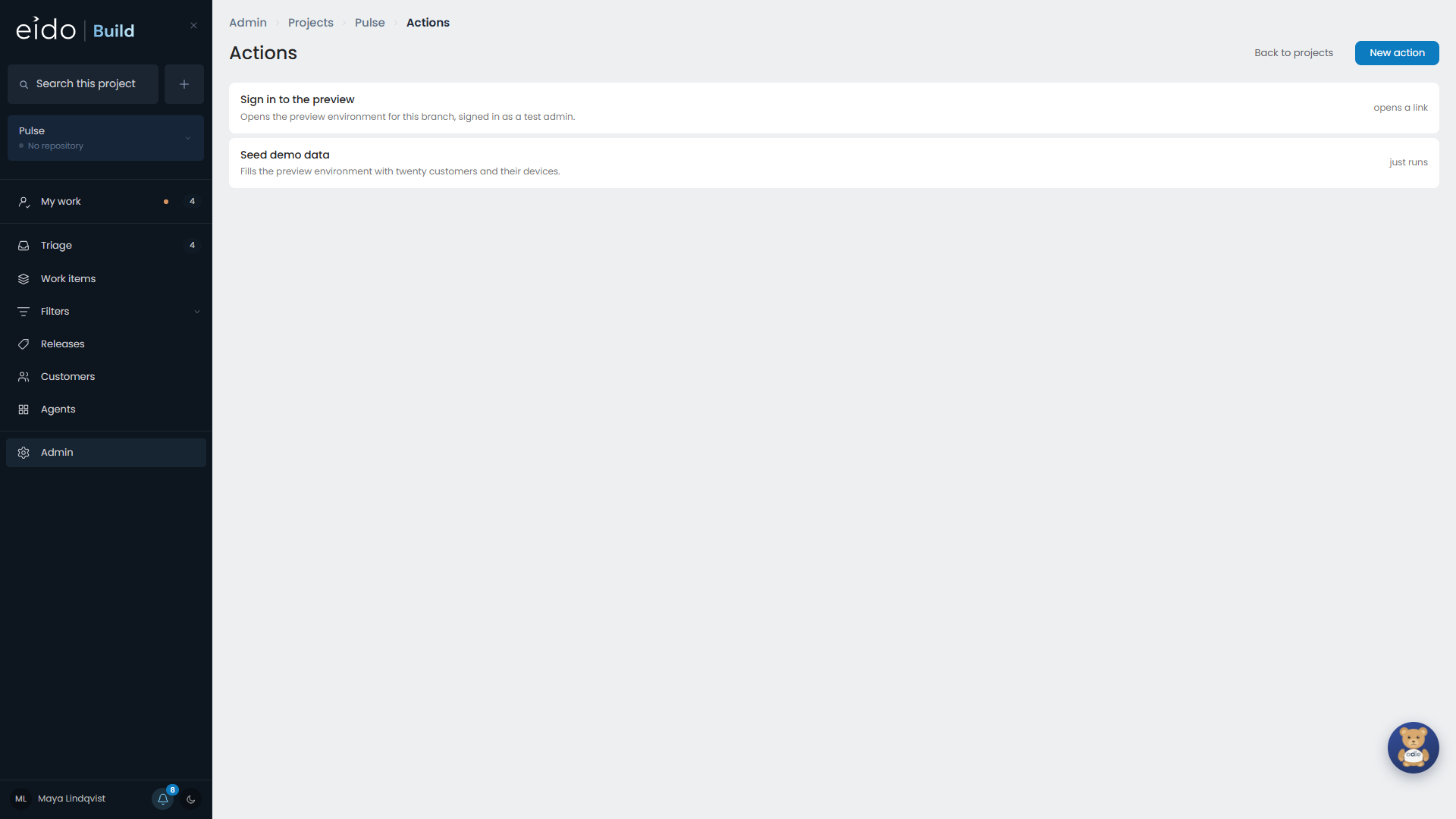
A project action is a PowerShell script with a name. Actions appear in the Actions menu on every work item in the project, and run against that work item’s branch.
Typical actions:
- sign in to the branch’s preview environment
- seed the environment with test data
- reset a test tenant
Actions are how a project gains a capability without anything being built into Eido Build. They are managed in Admin → Projects → Actions.
Write an action#
Give the action a name and a script. The script is told about the work item through environment variables that begin with BUILDENGINE_:
- the branch and the latest commit
- the pull request
- the build’s status
- the preview environment’s address
- the person who ran it
- every secret you have stored
The editor lists each variable beside the script, with an example value.
# Seed the branch's environment with demo data
$base = $env:BUILDENGINE_PREVIEW_URL
Invoke-RestMethod -Method Post -Uri "$base/api/dev/seed" `
  -Headers @{ 'X-Api-Key' = $env:BUILDENGINE_SECRET_SEEDKEY }
Write-Output "Seeded $base"
A secret called SeedKey arrives as BUILDENGINE_SECRET_SEEDKEY.
Signing in is just an action#
An action that prints a URL offers that URL to the person who ran it. A sign-in action is one that prints a signed-in link to the preview environment.
Letting an agent run actions#
An agent stage can be allowed to run chosen actions. Tick them under Tools on the stage in the workflow editor.
- The agent runs an action by name. It cannot supply or change the script, and cannot pass arguments.
- It gets back what the action printed, with secrets masked.
- An action that prints a URL is not offered to an agent, because the URL may carry a sign-in. The exception is a stage that uses a Windows 365 Cloud PC, which can open the link there without the agent seeing it.
- A stage may run actions at most 20 times.
- The action runs as the stage’s owner.
Readiness checks#
A stage that waits for a deployment normally watches the build. If your environment needs more than that to be ready, a stage can use an action as its readiness check instead.