Signing in#
People sign in with their Microsoft Entra work account. There are no separate passwords in Eido Build.
Being in your Entra tenant is not enough on its own. A person also needs a user in Eido Build with the same email address. Somebody without one who tries to sign in sees a message saying they have no account here.
Add a user#
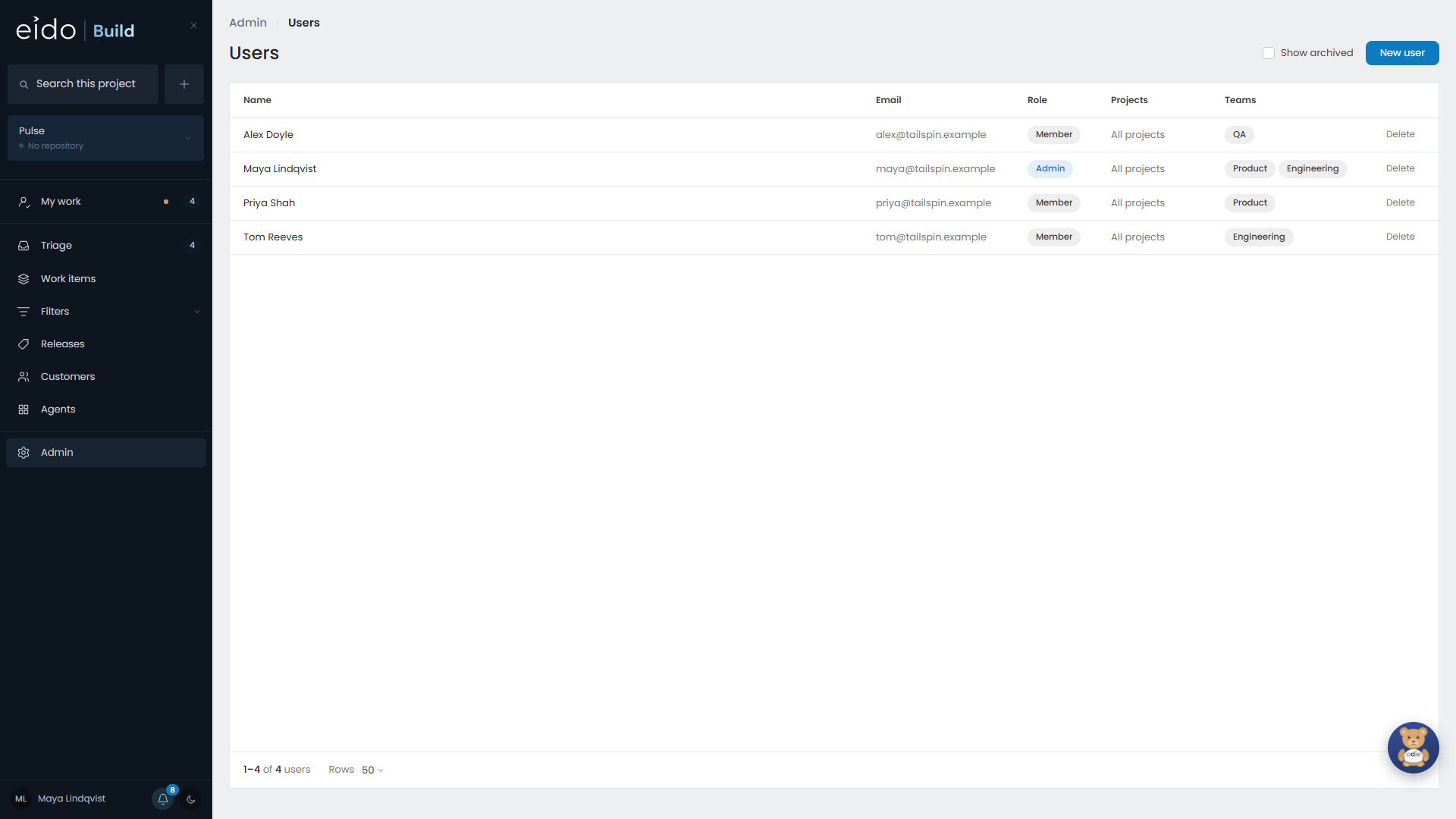
- Go to Admin → Users.
- Add the person with the email address they sign in to Microsoft with.
- Choose their projects, and what they may do on each.
- Put them in their teams.
Projects#
Give each person the projects they work on, or All projects, which also covers projects added later.
A person sees nothing of a project they have not been given: not its work items, not its customers’ requests, and not in search or in Odie’s answers.
What somebody may do on a project#
On each project, three tick boxes add to what a member can already do.
| Permission | Allows |
|---|---|
| (member) | Raise work, take part in stages, comment and follow, read releases and agents’ reports, ask Odie. |
| Triage | Approve and reject what is waiting in Triage. |
| Project admin | Act on and approve any stage, skip a stage, start work, change a workflow, a model or a budget, and run releases. It does not give the Admin screens. |
| See costings | See what stages, agents and conversations cost on that project. |
Admins#
An admin has the Admin screens, and is a project admin on every project they can see.
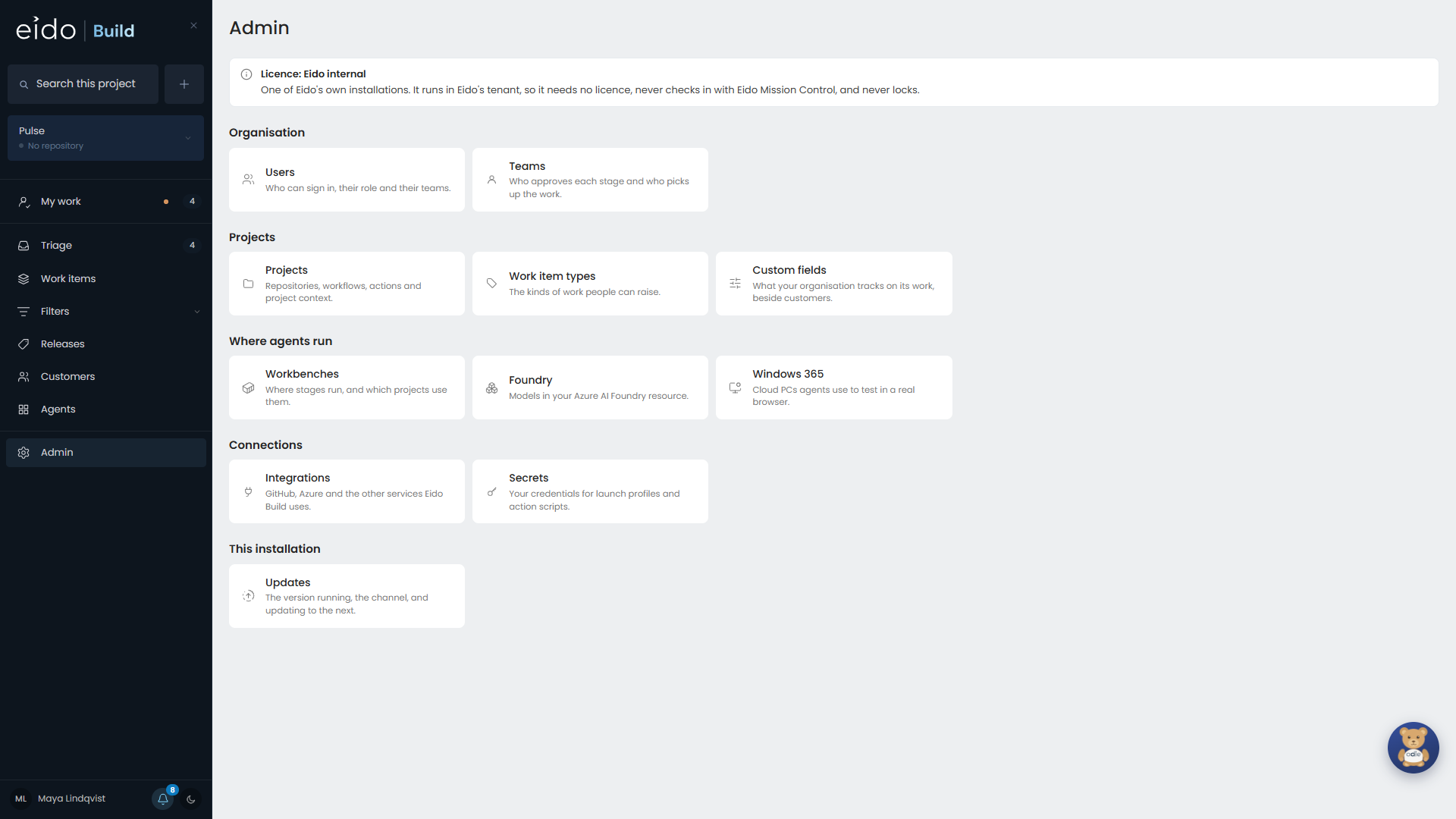
Seeing costs is still a separate grant, even for an admin. Tick See costings on the projects where they should see them.
Teams#
A person’s teams decide which stages they take part in and which they can approve, and which work they are offered as an owner. See Teams.
Your licence counts users#
Your Eido Build licence is based on the number of users. The current count and what you are licensed for are at the top of Admin. See Licensing.