
Organization settings > Eido > Spend shows what models cost, against the budgets you set. Eido prices every model call after your discount (see Models). Your Azure invoice is the final word.
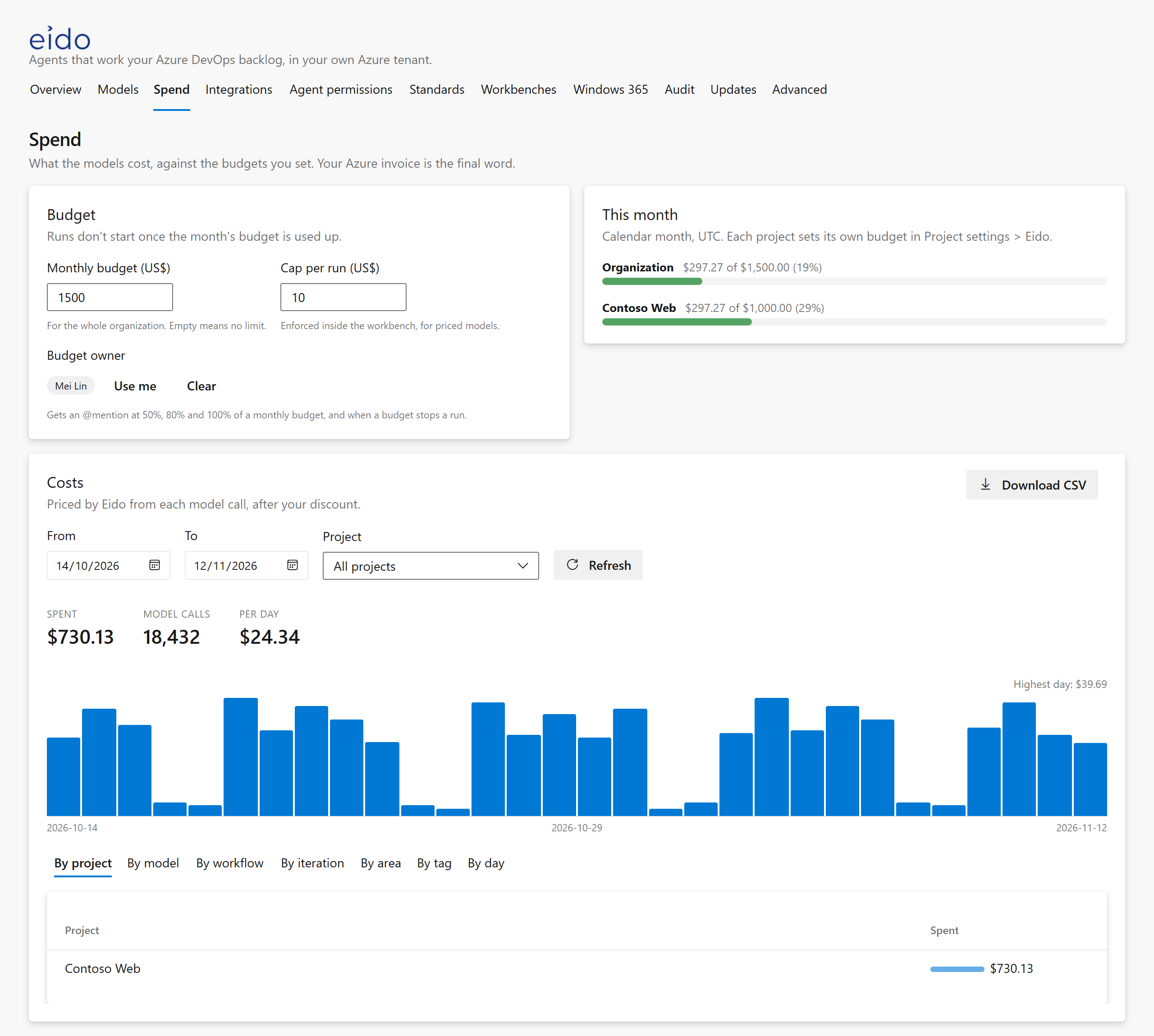
Set the budget#
Fill in the Budget card, then press Save in the bar at the bottom.
| Setting | What it does |
|---|---|
| Monthly budget (US$) | For the whole organization, per calendar month (UTC). Empty means no limit. |
| Cap per run (US$) | The most one run may spend. |
| Budget owner | Who Eido @mentions when spend runs high. Use me makes it you. |
Each project can set its own monthly budget and cap per run in its project policy. The tightest limit wins.
What a budget does#
- Once a monthly budget is used up, runs don’t start.
- A run never spends more than what is left of the month, or its cap.
- A run that reaches a limit pauses and keeps its work. It carries on by itself once the limit is raised or a new month begins. See Costs.
The budget owner gets an @mention at 50%, 80% and 100% of a monthly budget, as a comment on the work item whose run passed that level. The organization’s budget owner hears about every project’s budget too.
This month#
The This month card has a bar for the organization, and for each project with a budget. It turns amber from 80%, and red once used up.
The costs report#
The Costs card adds up every priced model call.
| Control | What it does |
|---|---|
| From, To | The dates. The last 30 days to start with. |
| Project | One project, or All projects. |
| Download CSV | Every model call in the range, one row each, for finance and chargeback. |
It shows Spent, Model calls and Per day, a chart of each day, and a breakdown By project, By model, By workflow, By iteration, By area, By tag or By day.
Spend counts model calls. The backend, workbenches and Cloud PCs are on your Azure invoice.