
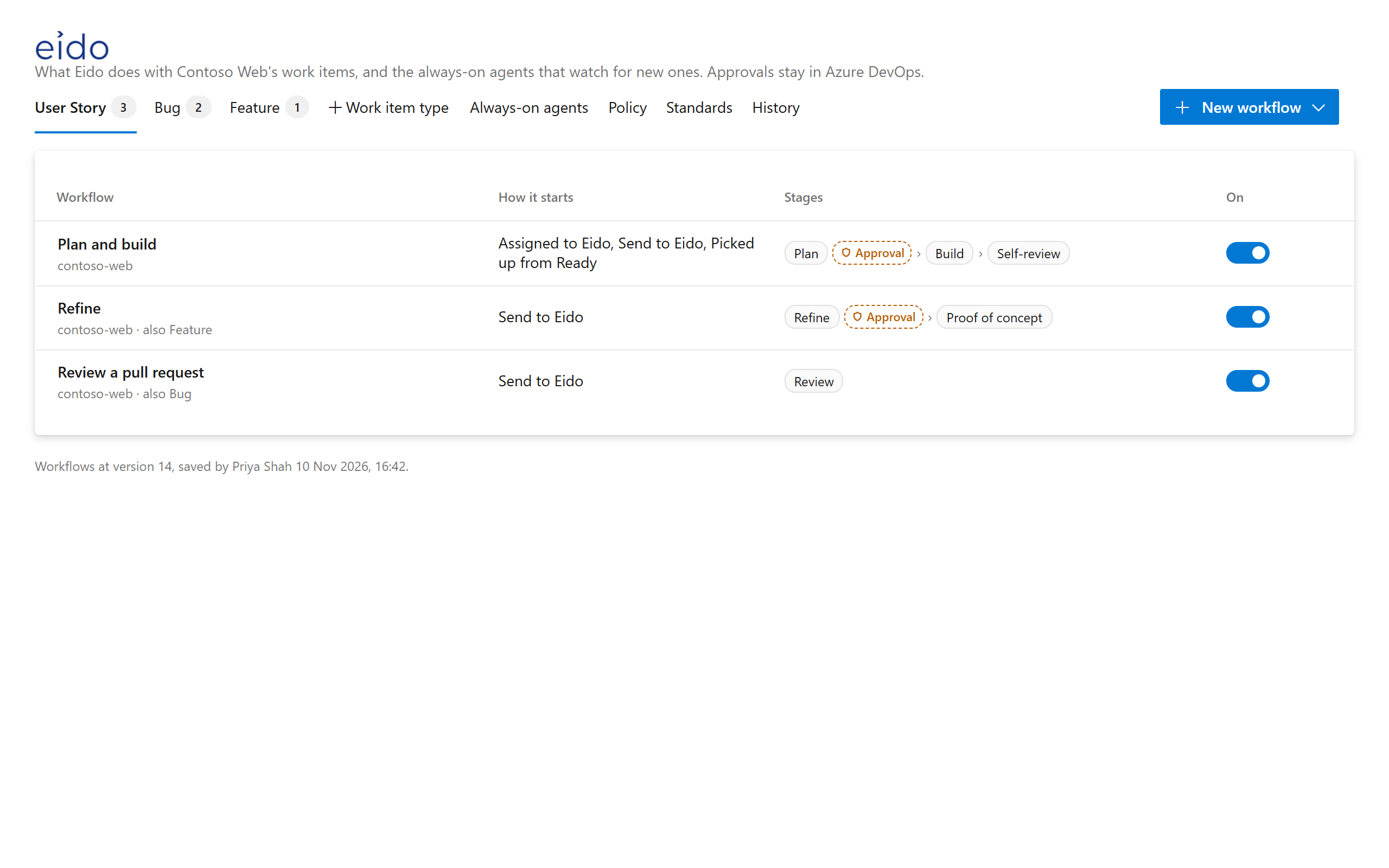
In Azure DevOps, open the project’s Project settings, then Eido. Only Project Administrators can change anything here. Settings for the whole organization are in Organization settings.
The tabs#
| Tab | What it holds |
|---|---|
| One per work item type, such as User Story | That type’s workflows, with New workflow. |
| Work item type (with a +) | Adds a tab for a type with no workflow yet. See Add a workflow. |
| Always-on agents | The project’s agents, with New agent. See Setting up always-on agents. |
| Policy | Models, budgets, workbench, who may send work, and standards packs. See Project policy. |
| Standards | Lessons to review, and the project’s own packs. See Project standards. |
| History | Events, board gates and saved versions, below. |
History#
Events#
Eido checks the project for changes every minute, so there is nothing to connect. Events shows when it last checked.
Board gates#
When an approval is tied to the board, moving the card on approves it. Protect each one with an Azure DevOps rule so only its approvers can make that move: in Organization settings > Boards > Process, open the work item type and restrict the transition from the waiting state to the next state to the approvers’ group.
The badge says All protected when every board gate has a rule. Otherwise it lists those not protected, or those to Check by hand.
Versions#
Every save of the project’s workflows is kept as a version.
-
Open a version
Select it, or press View changes, to compare it with what is saved now.
-
Restore it, if you need to
Press Restore this version. It is saved as a new version, so nothing is lost. A deleted workflow comes back this way too.