
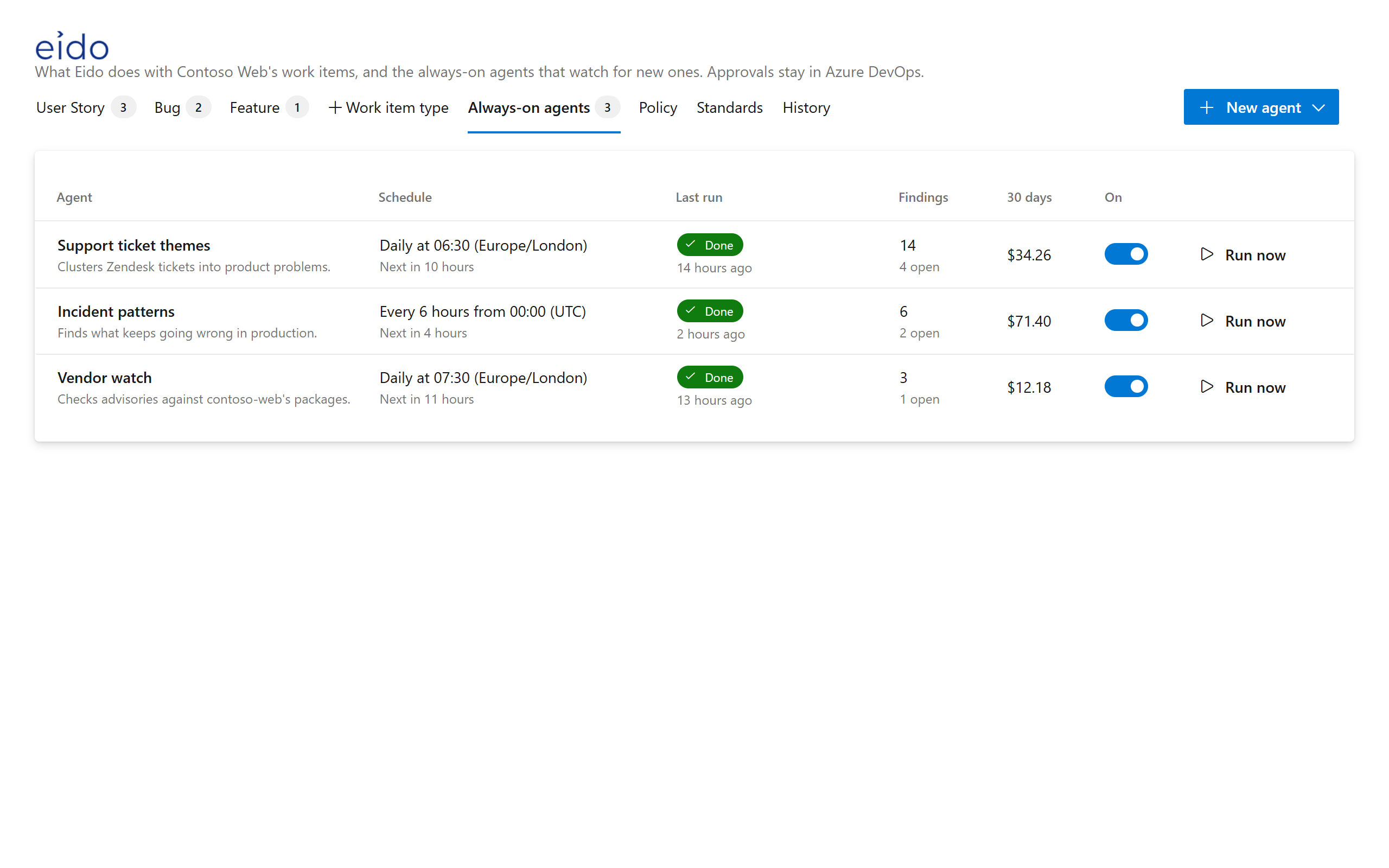
Always-on agents are in Project settings > Eido > Always-on agents. Only Project Administrators can make, change, run or delete them. What the people who triage their work see: Always-on agents.
To read systems such as Zendesk or ServiceNow, an organization admin first connects them in Integrations. Without any, an agent can still read the wiki, a repository and the web.
Make an agent#
-
Press New agent
Start From a template, or Describe it in plain English and press Draft it, or start Blank.
-
Check every tab
A drafted agent says Review every setting before saving.
-
Press Create agent
Nothing runs until you do. The message says when it first runs.
-
Try a test run
See Test runs.
The person who creates an agent owns it, and an agent that runs counts its owner as an Eido user. See Licensing and billing.
| Template | Raises |
|---|---|
| Customer intelligence | What customers keep asking for, from sales calls and the CRM. |
| Support intelligence | The product problems behind support tickets. |
| Incident patterns | What keeps happening across incidents, alerts and errors. |
| Security scanner | Vulnerabilities in the code, found the way an attacker would. |
| Vendor watch | Advisories for what the project depends on, checked against the code. |
| Product research | What people say in public about this kind of product. |
The editor#
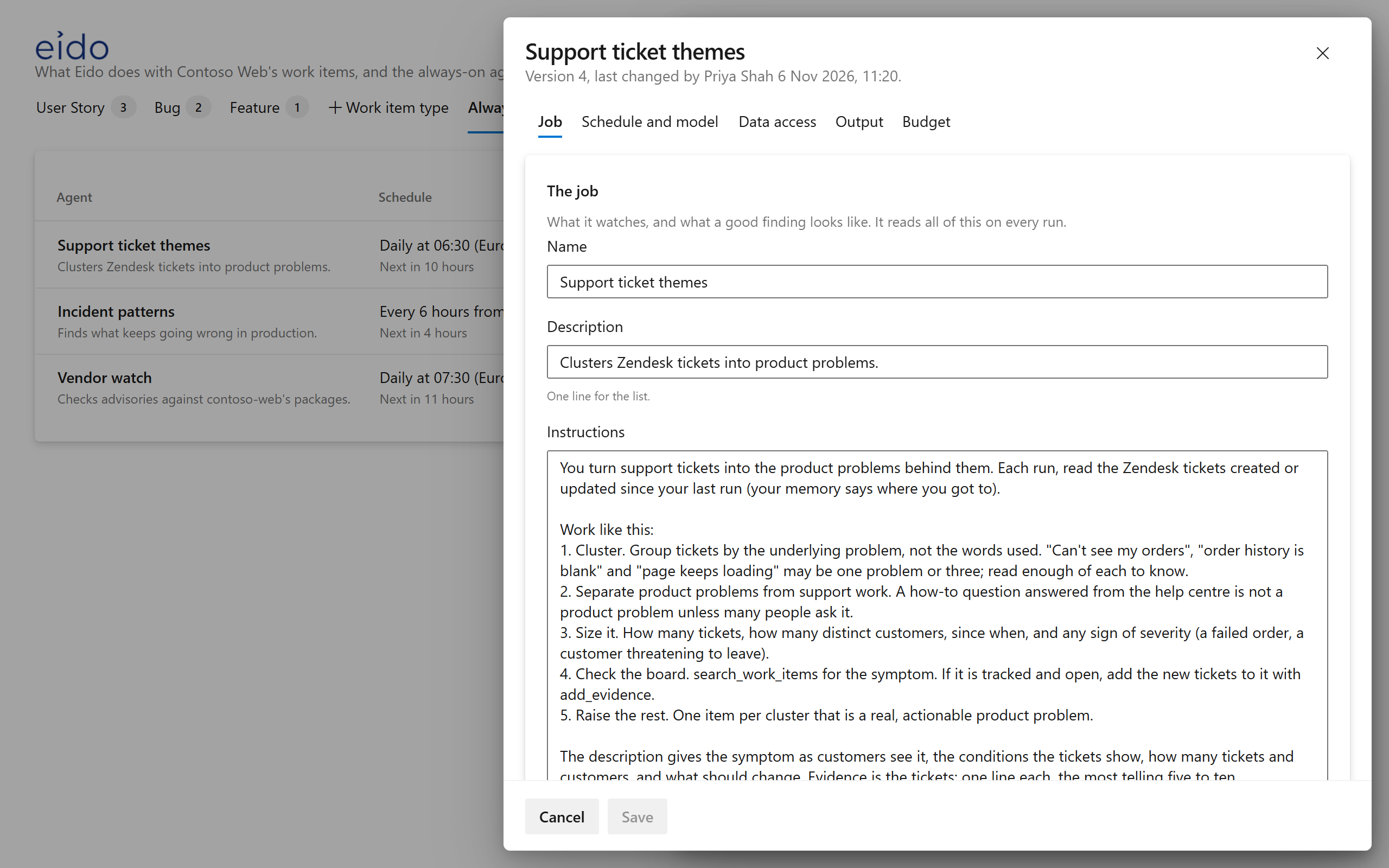
Job#
| Setting | What it does |
|---|---|
| Name | Also gives the agent its tag, eido-agent-<name>. |
| Instructions | What to look at, what counts as a finding, and what evidence to cite. |
| Switched on | When off, it runs only when someone presses Run now. |
Memory shows the short notes it keeps between runs. Tick Forget everything it remembers when I save to clear them.
Schedule and model#
When it runs: Only when someone presses Run now, Every few hours, Every day, On days of the week or Once a month, in the agent’s Time zone. Next runs lists when it will run.
Model is the organization’s default unless you pick another the project’s policy allows.
Data access#
| Group | Settings |
|---|---|
| Integrations | Each connection it may read, with Every read action, including ones added later or Only these. Preview. |
| Azure DevOps | Search and read the project wiki, and a Repository, checked out read-only. |
| The web | Approved hosts, one per line, like nvd.nist.gov or *.github.com. Empty: no browsing. |
Output#
What it raises: Type, State, Area path, Iteration path and Tags. A blank state is the type’s first, and blank paths are the project’s defaults. Leave Assign to blank for triage. New items per run, at most doesn’t count evidence added to items it raised before.
Budget#
Per run, and Per day over any 24 hours, test runs included. Zero is no limit. A run stops at the tightest of these and the project’s and organization’s caps. See Costs.
Test runs#
A test run works like a real one, but raises nothing and remembers nothing. What it would have raised shows in its timeline. It still costs, and counts towards the day’s budget.
Press Test run (raises nothing) in the agent’s … menu, or Test run in its panel.
Running and deleting#
- On switches an agent’s schedule off or on. Run now runs it straight away.
- Select an agent for its Runs and Findings. See Following an agent.
- Delete, in its … menu, deletes its runs and findings. The work items it raised stay, and so does what it spent.
What an agent can never do#
- Change the systems it reads. Write actions are never offered to it.
- Push to the repository it reads.
- Browse beyond its approved hosts.
- Do anything the organization’s agent permissions forbid.