
What Eido counts#
Every model call Eido makes, for runs and always-on agents, priced as it happens. Other Azure costs, such as Cloud PC hours, aren’t included. Pricing and discounts: Models and Spend and budgets.
What a run or work item cost#
The Models and cost card on the work item’s Eido tab shows:
- This run: what the run has spent, against its budget, and each model it used.
- This item and everything under it: every run on this item and on every item under it in the backlog, with the Most expensive items under it.
What a release cost#
| If your release is | Look at |
|---|---|
| An iteration | By iteration on Boards > Eido > Costs. |
| A tag | By tag on the same tab. |
| A parent item Eido worked on, such as a Feature | This item and everything under it on its Eido tab. |
The Costs tab#
Boards > Eido > Costs shows what the models cost in the projects you can see, by Project and Dates. It breaks spending down By day, By model, By project, By workflow, By iteration, By area and By tag.
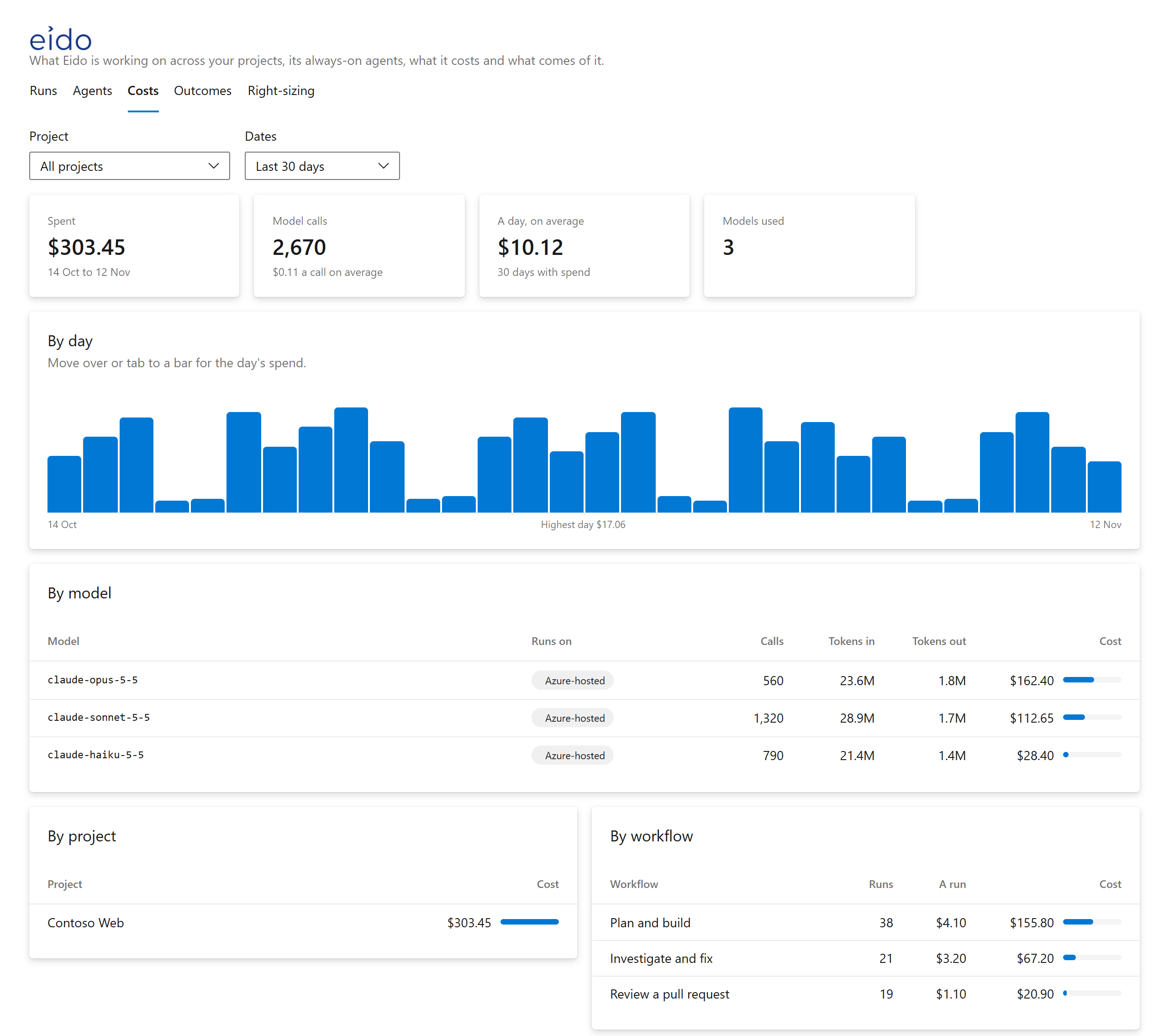
For a file finance can use, a Project Collection Administrator presses Download CSV in Organization settings > Eido > Spend.
Budgets that stop spending#
All in US dollars. Where several apply, the tightest wins. Blank is no limit.
| Budget | Set in | Limits |
|---|---|---|
| Monthly budget (US$) | Organization settings > Eido > Spend | Everything, in a calendar month (UTC). |
| Cap per run (US$) | Organization settings > Eido > Spend | Any one run. |
| Monthly budget | Project settings > Eido > Policy | The project, in a calendar month. |
| Most a run may spend | Project settings > Eido > Policy | Any one run in the project. |
| Budget per run | A workflow’s General tab | One run of that workflow. |
| Budget | A stage’s Output and limits tab | That stage. |
| Daily budget | A workflow’s Triggers tab, under Auto pick-up | What the items auto pick-up took spend in a day (UTC). |
| Per run and Per day | An always-on agent’s Budget tab | One run of the agent, and its last 24 hours. |
- A run is only ever allowed what is left under the tightest budget, so it can’t overshoot.
- Once a monthly budget is used up, runs don’t start and always-on agents’ runs are Skipped. Eido says why.
- At 50%, 80% and 100% of a monthly budget, Eido comments on the work item and @mentions the organization’s Budget owner. From 80%, a banner on Boards > Eido says so too.
When a budget stops a run#
The run shows Paused: out of budget, and Eido comments on the work item, starting Eido paused:, naming the budget. Nothing is lost, and nothing is spent while it waits.
Raise that budget, and Eido carries on by itself from the stage that stopped, as it does when a new month starts. To carry on at once, press Continue on the Eido tab, or reply in a comment. The person who sent the item, its approvers and Project Administrators can press Continue.