
Where it is#
In Azure DevOps, open Boards, then Eido. It covers every project you can read, in five tabs: Runs, Agents, Costs, Outcomes and Right-sizing.
When a monthly budget is 80% used or more, a banner above the tabs says so. See Costs.
Runs#
Every work item Eido is working on or has worked on. Filter by Project, Status and Updated. Show gives Work items, each at its latest run, or All runs.
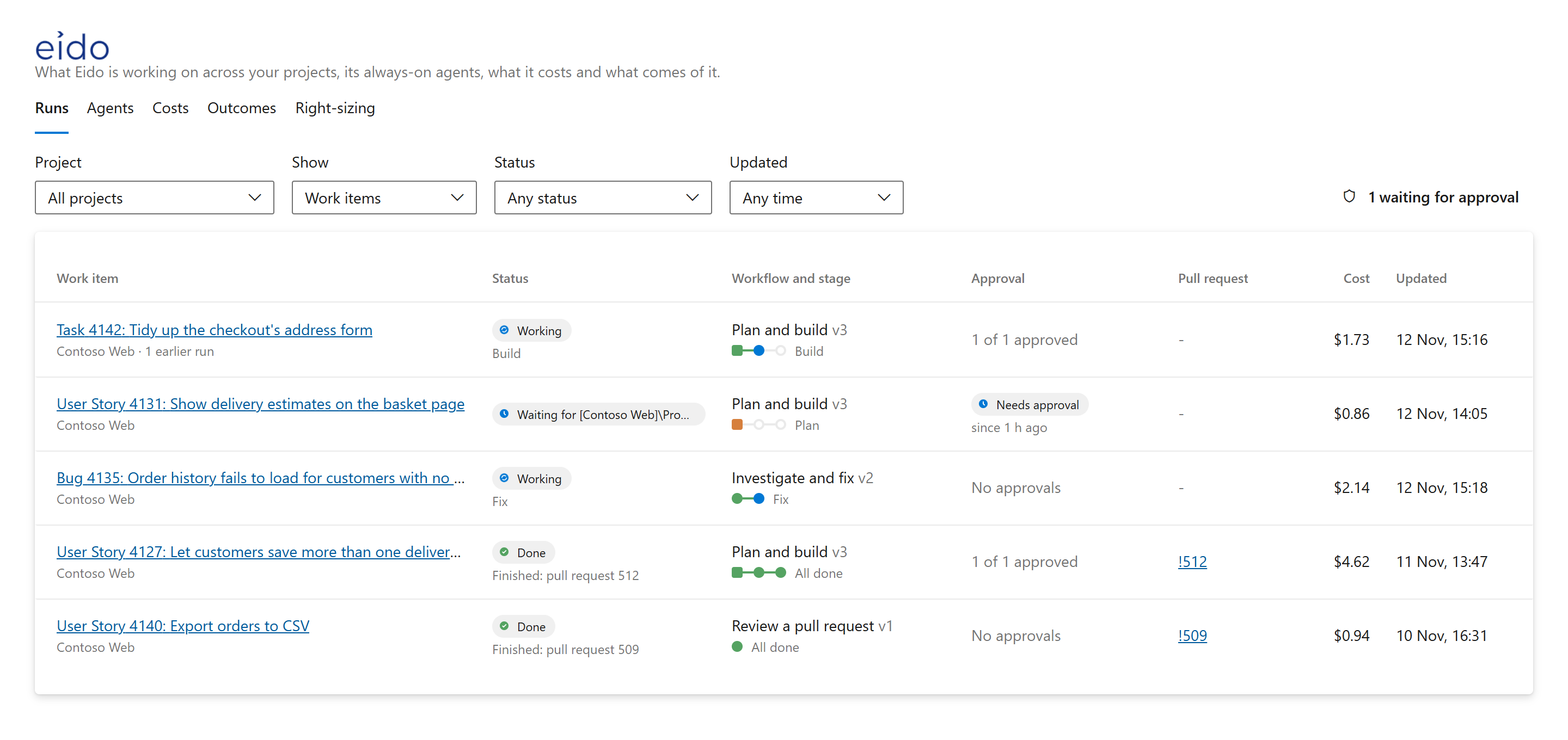
When runs are waiting on a person, a button says how many, such as 3 waiting for approval. Press it to see just those.
Select a row to open the run in a panel. It is the same view as the work item’s Eido tab: approve, continue or stop from there. What each status means: Following a run.
Agents#
Every always-on agent, with its runs and the work items it raised. See Always-on agents.
Costs#
What the models cost, by day, model, project, workflow, iteration, area and tag. See Costs.
Outcomes#
Whether Eido’s work is any good, by Project and Dates.
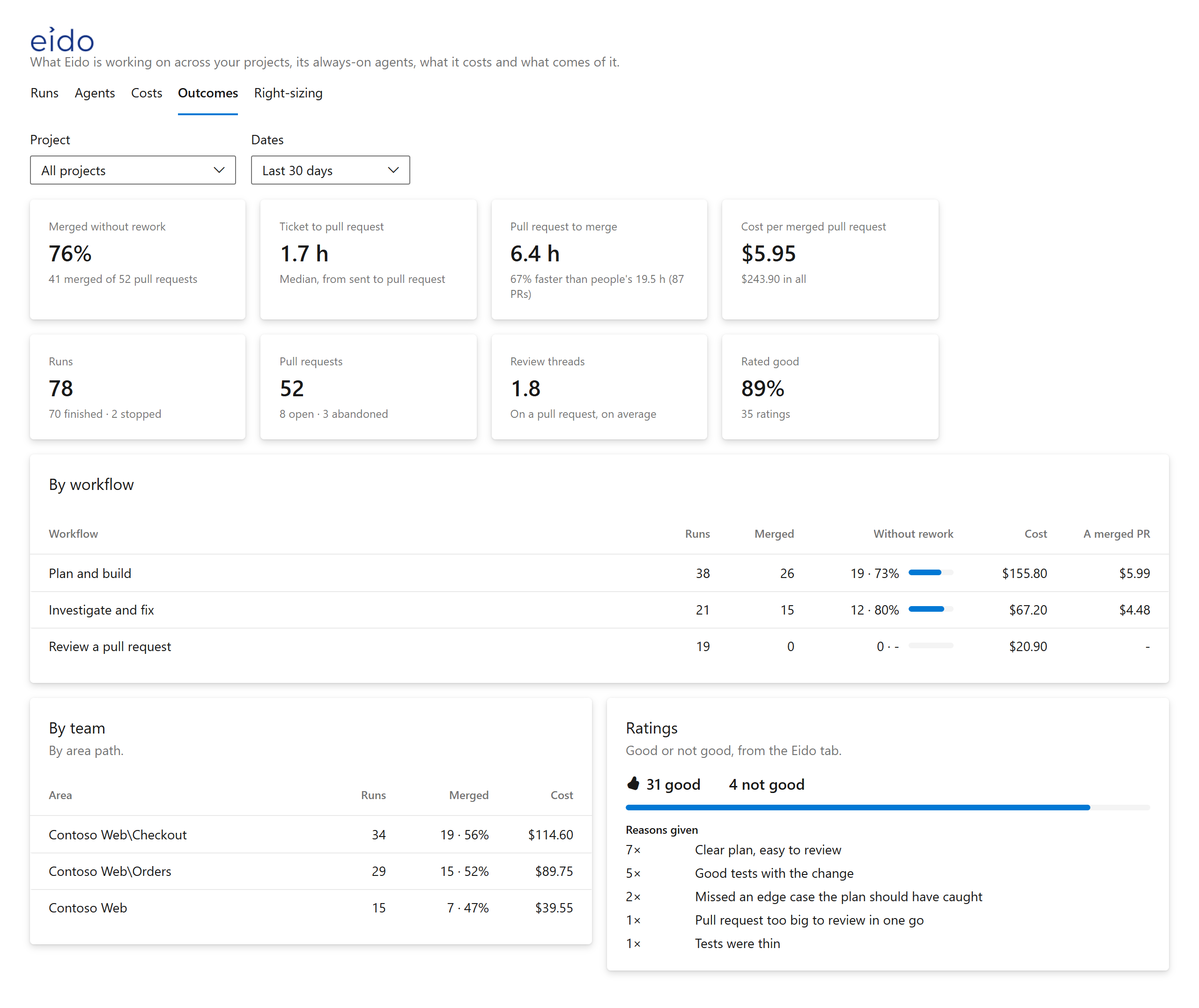
| Figure | What it is |
|---|---|
| Merged without rework | The share of Eido’s pull requests merged with no commits from people. |
| Ticket to pull request | The median time from sending an item to its pull request. |
| Pull request to merge | The median time to merge, against your people’s own pull requests. |
| Cost per merged pull request | What it all cost, over what merged. |
| Rated good | From the ratings people give a finished run on the Eido tab. |
There are also counts of Runs, Pull requests and Review threads, then By workflow, By team and Ratings, with the reasons people gave.
Right-sizing#
Is the dearer model worth it? Models by workflow stage lists each stage and model with its runs, merges, Success (merged without rework) and what A run cost. When a cheaper model succeeds as often, Worth trying says so.
Change a stage’s model on its Basics tab. See Stages and steps.