
The Steps tab#
Open a workflow and choose Steps. It lists what a run does, in order, from Start to Hand back.
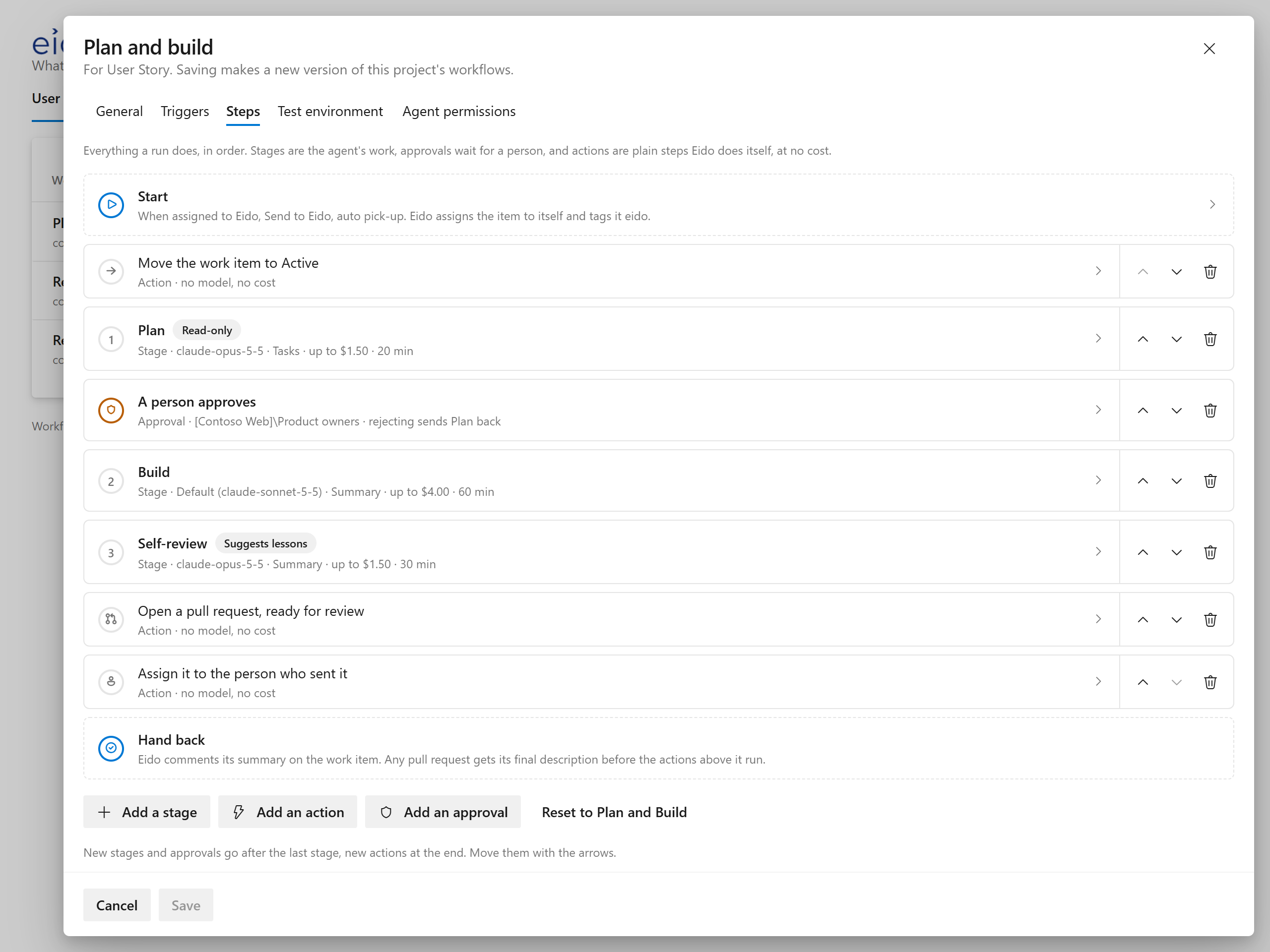
| Step | What it is | Costs |
|---|---|---|
| Stage | The agent’s work: a model, instructions, tools and limits. | Model time |
| A person approves | A gate: Eido waits for a person. | Nothing while it waits |
| Action | A plain step Eido does itself, such as moving the work item. | Nothing |
At Start, Eido assigns the item to itself and tags it eido, unless the workflow works on a person’s pull request. At Hand back, it comments its summary on the work item.
Add steps with Add a stage, Add an action and Add an approval. Move a step with its arrows, and remove it with its bin.
| An action placed | Runs |
|---|---|
| Before the first stage | When Eido starts. |
| After a stage | When the stage finishes, before its approval. Again if the stage is sent back. |
| After an approval | Once, when it is approved. |
| After the last stage | At the hand-back. An approval there holds these actions back. |
Stages#
Select a stage to open it. Changes are saved with the workflow.
Basics#
| Setting | What it does |
|---|---|
| Name | Shown on the work item as the run moves through. |
| Model | Blank: the organization’s default. One the project’s policy rules out says (not allowed here). See Models. |
| Instructions | What the agent does in this stage. End with what it hands on. |
Output and limits#
| Setting | What it does |
|---|---|
| A summary, Tasks or A comment | What the stage hands on: a summary, child Tasks for later stages, or the summary as a comment. |
| Read-only | The agent may not push. |
| Fresh eyes: start a new conversation | The agent sees what earlier stages said, not how they went about it. Best for a review. |
| May suggest lessons | See Project standards. |
| Budget and Time limit | Limits for this stage, within the run’s. Whatever the limit, an agent that says nothing for 32 minutes is stopped, and Continue carries on from that stage. |
Tools#
Every stage can comment on, attach to, read and link work items. Switch on the rest here.
| Group | Settings |
|---|---|
| Work items | Search and read the project wiki, May create items of type and May update items of type. |
| Starting runs | May start runs on other work items, to hand parts of the work on. |
| MCP servers | Servers your organization approved. |
| Pull request and pipelines | Read its pull request, pipeline runs and deployment. On by default. |
| Code review | May comment in the pull request and May vote on the pull request. See Code review. |
| Integrations | Connections it may call. Write actions only with Allow the write actions named below. Preview. |
MCP servers and integrations are set up in Integrations.
Windows 365#
For a stage that tests on a Cloud PC.
| Setting | What it does |
|---|---|
| Desktop | The provisioning policy it borrows a Cloud PC from. |
| This stage needs a desktop | The workflow can’t be saved until one is picked. Templates that test set it. |
| Secrets it may type | Secrets Eido types on the Cloud PC. The agent never sees their values. |
Agent permissions#
Inherited from the workflow until you press Override, and you can only take away. See Agent permissions.
Actions#
Plain steps Eido does itself, with no model and no cost.
| Action | Settings |
|---|---|
| Move the work item | A state, or Its first In Progress state. |
| Assign the work item | The person who sent it, Eido, Nobody: unassign it, or Someone else. |
| Open a pull request | As a draft, or ready for review. |
| Make the pull request ready for review | Publishes the draft. |
| Add reviewers to the pull request | Groups or people, optionally Required. |
| Comment on the work item | Markdown. {pullRequest}, {branch}, {title}, {workItem}, {sender} and {cost} are filled in. |
| Add or remove tags | Tags to Add and to Take off. |
| Set a field | Any field, like Priority. Blank clears it. |
When a step is marked#
Saving stops with Some steps need fixing first: they are marked on the Steps tab. Each marked step says what to change, such as It tests on a W365 Desktop: pick one on its Windows 365 tab.