
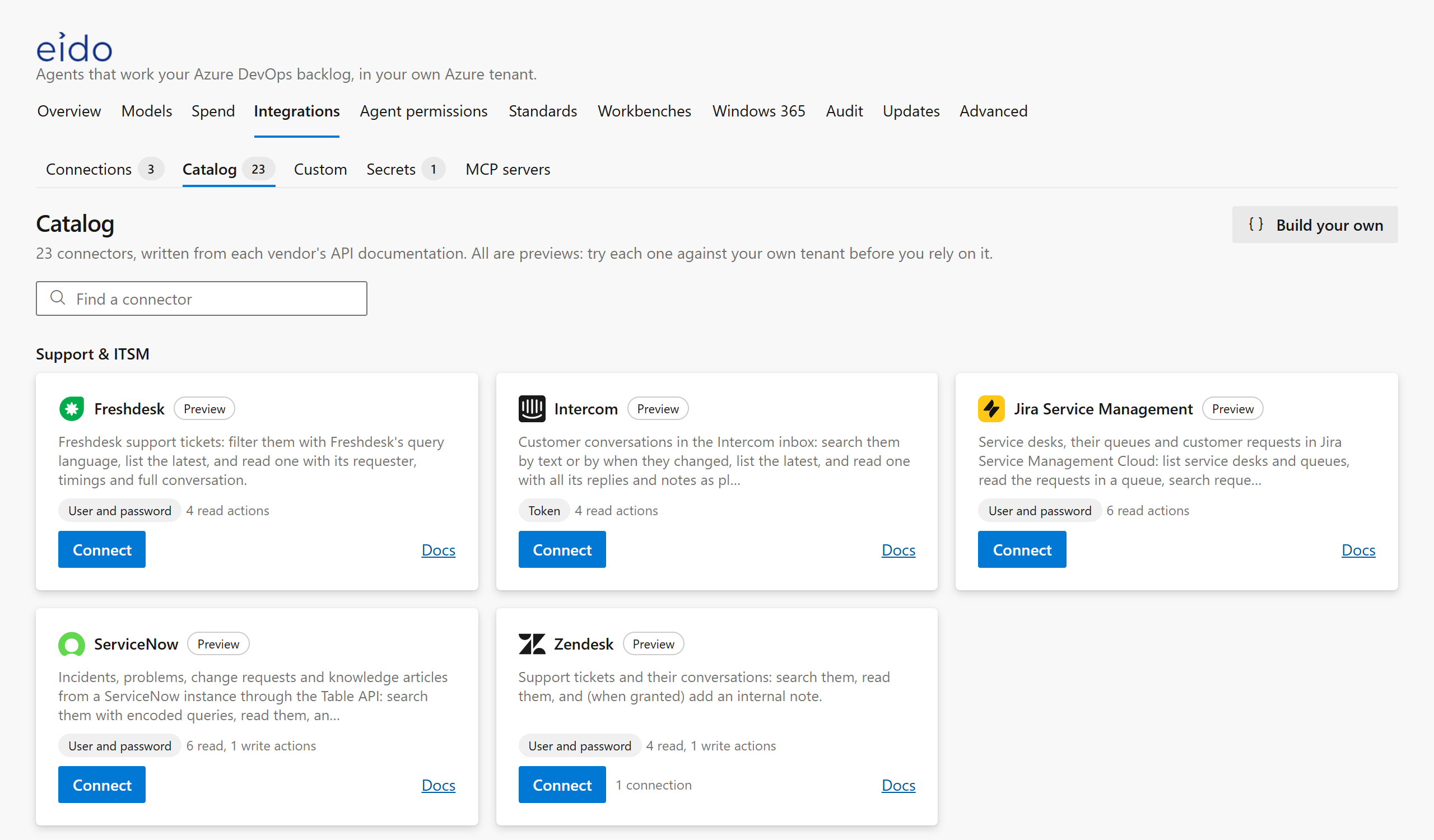
Organization settings > Eido > Integrations has five tabs: Connections, Catalog, Custom, Secrets and MCP servers.
A connection is a connector set up against one of your tenants, with the secret it signs in with. Eido makes every call itself, so the secret never reaches an agent, a workbench or a browser.
Connect a system#
- Open Catalog, and press Connect on the connector.
- Name it, and fill in its settings. Keep the Connection name short, such as zendesk-eu: it goes in the agents’ tool names. The connector says what settings it needs, such as a subdomain.
- Choose the secret it signs in with. Pick one, or Create a new secret… and paste the value. See Secrets.
- Say who may use it. Every project, or Chosen projects.
- Press Test connection. This saves it, then runs the connector’s read-only test.
Connectors that sign in with Microsoft Entra use Eido’s managed identity instead of a secret. Grant that identity read access in the system itself.
The catalog has these connectors:
| Group | Connectors |
|---|---|
| Support & ITSM | Zendesk, Freshdesk, Intercom, ServiceNow, Jira Service Management |
| Sales & customers | Salesforce, HubSpot, Dynamics 365, Gong |
| Monitoring & incidents | Azure Monitor & Application Insights, Datadog, Splunk, Sentry, PagerDuty |
| Security | Microsoft Sentinel & Defender, Snyk |
| Collaboration & knowledge | Microsoft Teams, Slack, Confluence, SharePoint & OneDrive |
| Engineering | GitHub, Jira |
| Feeds | Web & security feeds |
Connections#
Open a connection for three tabs:
- Settings: what you set when connecting, its Hosts, and the On switch.
- Try an action: runs one action now, as you, and shows exactly what an agent would get. A write action is real, so Eido asks first.
- Recent calls: who called it, and the result.
If your firewall filters Eido’s outbound traffic, allow the connection’s Hosts.
Who gets what#
In Project settings > Eido:
- A workflow stage gets connections on its Tools tab: every read action, or the ones you choose. It gets a write action only when the action is named and Allow the write actions named below is on. See Stages and steps.
- An always-on agent gets read actions only. See Setting up always-on agents.
Your own APIs#
The Custom tab is for APIs the catalog doesn’t have.
| Button | What it does |
|---|---|
| Import from OpenAPI | Paste an OpenAPI 3 document as JSON, press Read it, and tick the operations agents may use. |
| Describe it | Say what agents should read, with the API’s documentation if you have it, and press Draft it. |
| New connector | Write the definition yourself, as JSON. |
Check the definition, then press Save draft or Publish. A published connector appears in Catalog under Your connectors. For an API inside your own network, turn on Internal network on its connection.
MCP servers#
The MCP servers tab lists servers your workflows may call, such as your documentation search. Press Add a server, and give its Name, its Address over https, and its Sign-in. With Microsoft Entra (managed identity), give its Scope and grant Eido’s identity access on the server.
A stage uses a server only when it names it, in the MCP servers group of its Tools tab.