
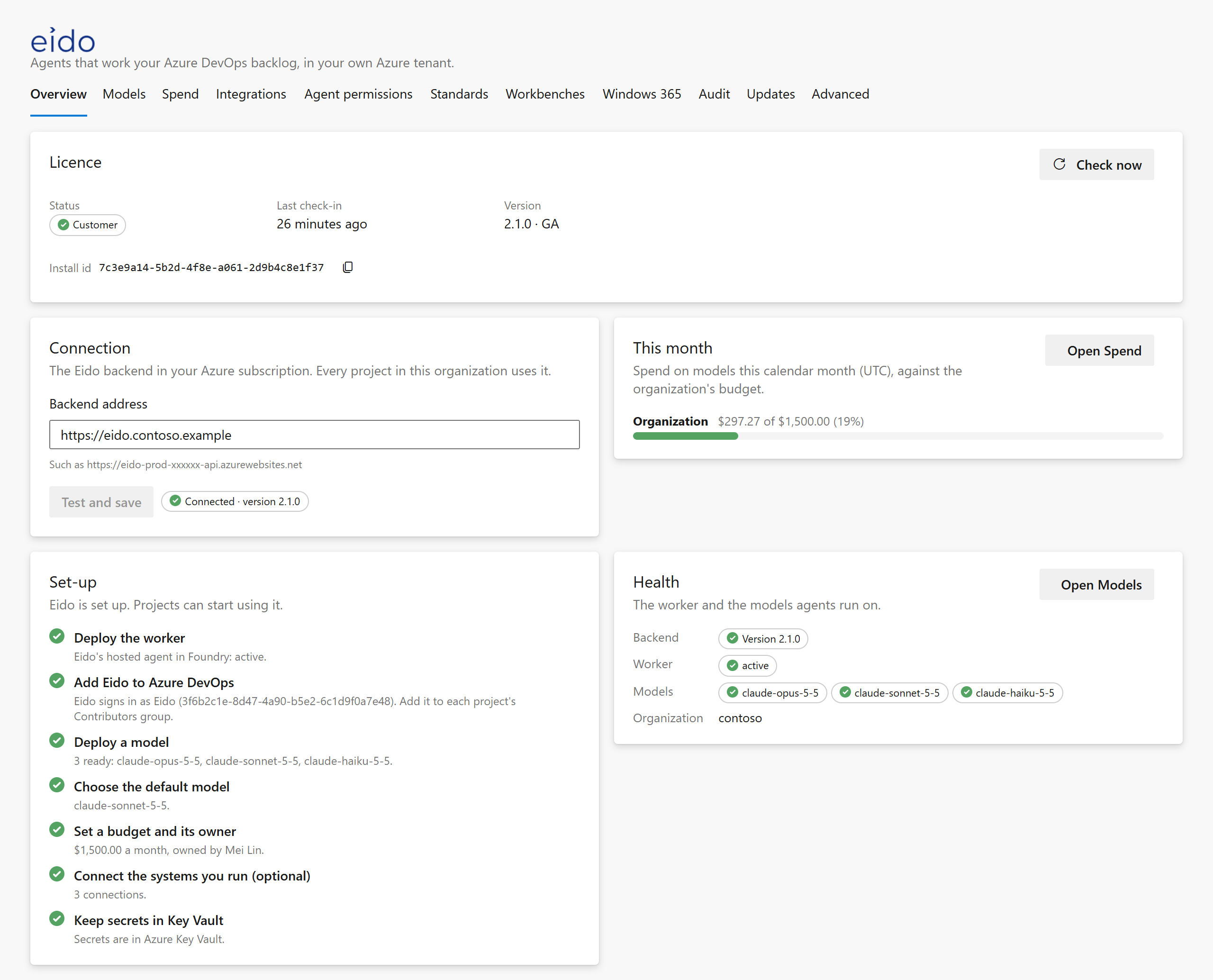
Opening it#
In Azure DevOps, open Organization settings, then Eido. Only Project Collection Administrators can change anything here.
Until the backend is connected, only Overview works, and it shows Getting started. Deploy the backend (Install from Azure Marketplace), then connect it (Install the extension).
The tabs#
| Tab | What it is for | More |
|---|---|---|
| Overview | The licence, the backend’s address, what is left to set up, this month’s spend and health. | Below |
| Models | The Foundry models agents think with, their prices, and the default. | Models |
| Spend | The monthly budget, the cap per run, and the costs report. | Spend and budgets |
| Integrations | Connections to other systems, your own connectors, secrets and MCP servers. Preview. | Integrations, Secrets |
| Agent permissions | The most any agent may do in its workbench, in every project. | Agent permissions |
| Standards | Packs of rules agents follow, and lessons projects send up. | Standards |
| Workbenches | Where agents work, and the Linux and Windows images they are made from. | Workbenches and images |
| Windows 365 | The Cloud PCs agents borrow to test on Windows. | Windows 365 |
| Audit | The audit log, and the backend’s own logs. | Audit log, App logs |
| Updates | The version Eido runs, and updating it. | Updates |
| Advanced | How Eido hears about changes, and how long it keeps run history. | Advanced |
Overview#
| Card | What it shows |
|---|---|
| Licence | Your licence, and when Eido last checked it. See Licensing and billing. |
| Connection | The Backend address, and Test and save. |
| This month | Model spend this calendar month (UTC), against the budget. Open Spend goes to Spend. |
| Set-up | What is left to do before projects can use Eido. |
| Health | The backend’s version, the worker, each deployed model, and any model with No price. |
Set-up#
Each step that is not done has a button that opens the tab that does it.
| Step | Done when | Button |
|---|---|---|
| Deploy the worker | Eido’s hosted agent in Foundry is active. | Open Models |
| Add Eido to Azure DevOps | Eido can sign in to your organization. See Let Eido into Azure DevOps. | None |
| Deploy a model | At least one model is ready. | Deploy a model |
| Choose the default model | The default model is ready. | Open Models |
| Set a budget and its owner | The organization has both. | Open Spend |
| Connect the systems you run (optional) | At least one connection, with no problems. | Browse the catalog |
| Keep secrets in Key Vault | Secrets are in Azure Key Vault. | Open Secrets |
When every step is done, the card says Eido is set up. Projects can start using it.
While an update is on its way, a bar at the top of the page says when Eido will restart. See Updates.
Settings for one project#
Each project has its own Project settings > Eido page. A project can only tighten what is set here. See Project settings.