
On a work item#
| Where | For | See |
|---|---|---|
| Send to Eido, on the … menu, or right-click on backlogs, boards and query results | Giving Eido one item or several | Giving Eido work |
| Eido in Assigned To | Giving Eido the work. Assign someone else to stop it. | Giving Eido work |
| The Eido group, on the Details page | Where Eido is, at a glance, with at most one button | The Eido group |
| The Eido tab | Everything about Eido’s work on the item | The Eido tab |
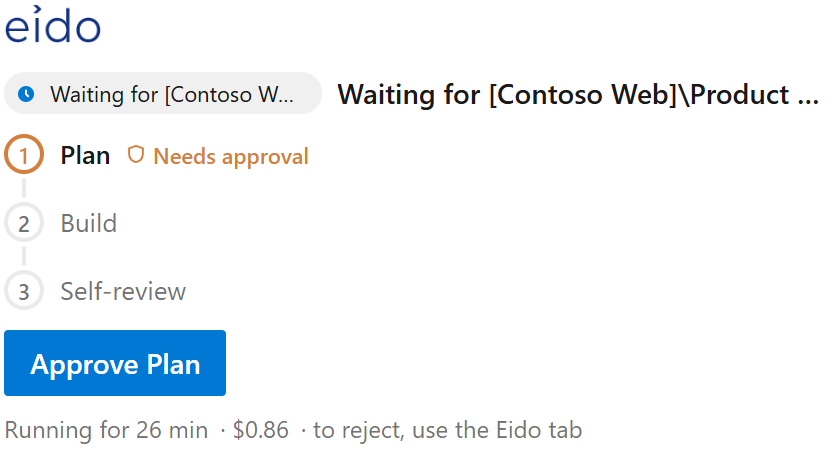
| The discussion | Eido’s questions, approvals and progress. Where you reply. | The comments Eido posts |
Tags#
| Tag | On |
|---|---|
eido | Every item Eido has worked on, and the Tasks it creates. |
eido-created | Tasks Eido created for a plan. |
eido-needs-detail | Items Eido passed by on a board because they need more detail. |
eido-reviewed | Items whose pull request Eido reviewed, in the Review a pull request workflow. |
eido-tested | Items whose pull request Eido tested, in the Test a pull request on a W365 Desktop workflow. |
On a pull request#
- Pull requests Eido opens, titled with the work item’s number and title. See Eido’s pull requests.
- Eido’s review comments, one thread per finding. See Code review.
- Teach Eido, on the … menu, and /lesson in a thread. See Teaching Eido.
In Boards#
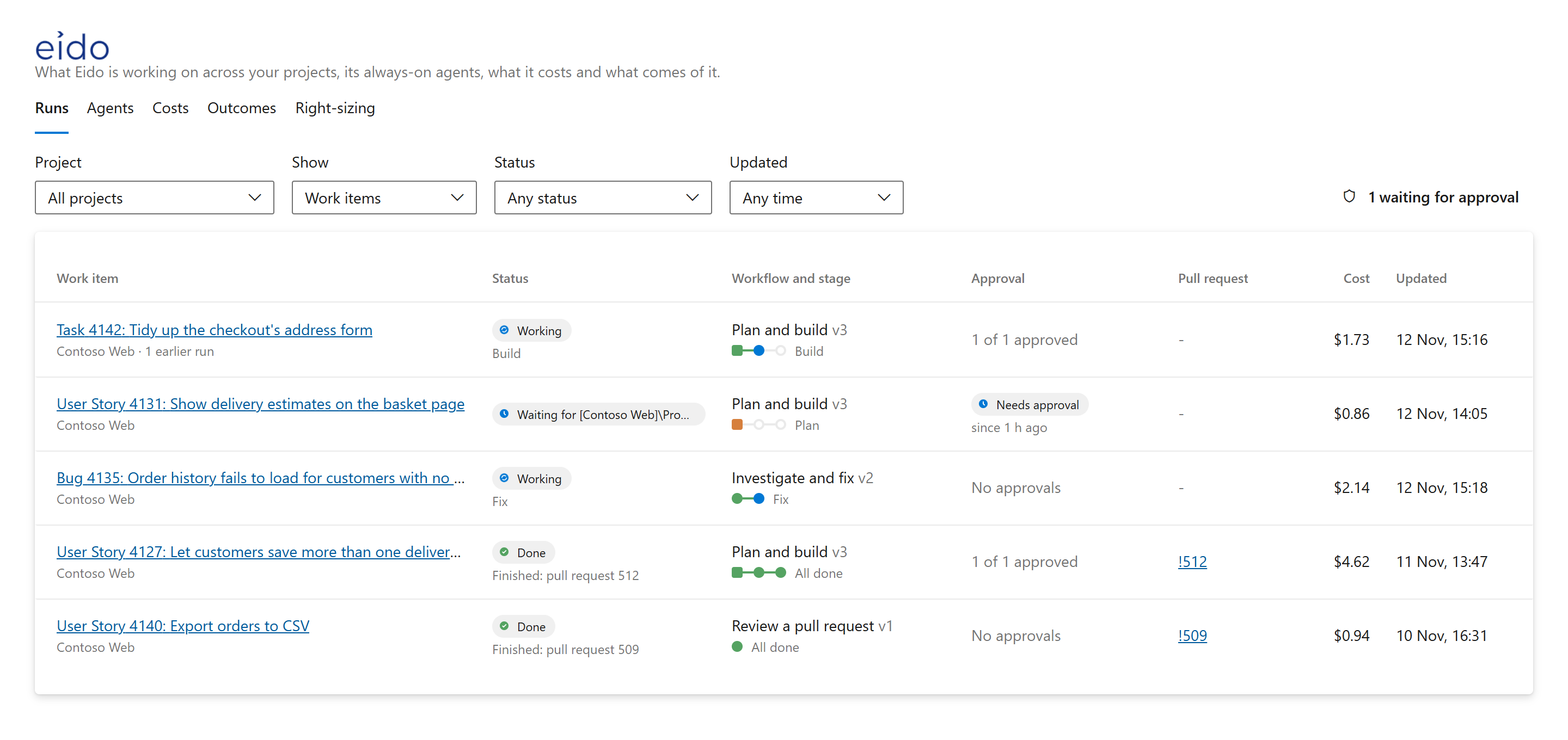
Boards > Eido has Runs, Agents, Costs, Outcomes and Right-sizing, across the projects you can see. See The Eido hub.
In settings#
| Page | Tabs | Changed by |
|---|---|---|
| Project settings > Eido | One per work item type with workflows, then Always-on agents, Policy, Standards and History | Project Administrators |
| Organization settings > Eido | Overview, Models, Spend, Integrations, Agent permissions, Standards, Workbenches, Windows 365, Audit, Updates and Advanced | Project Collection Administrators |
See Project settings and Organization settings.